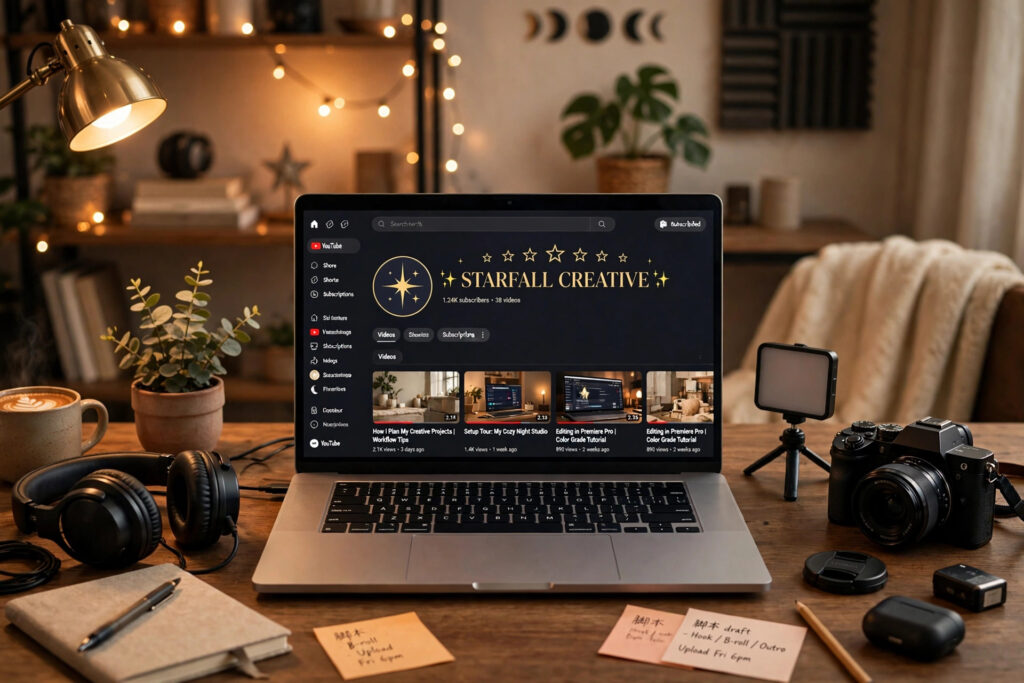
Figuring out how to add symbols to your YouTube channel name is simple once you know which field to edit: symbols go in your channel name, the display name shown under every video and comment, not in your @handle. Your channel name allows up to 50 characters and accepts most Unicode symbols, while your handle is limited to 3–30 characters of plain letters, numbers, periods, hyphens and underscores only. This guide shows the steps, the best symbols, the 14-day limit, and copy-paste examples.
Generate a ready-made styled name with the YouTube name generator first.
Channel Name vs Handle: Where Symbols Actually Work
YouTube shows two names on every channel, and they follow different rules. The channel name is your display name. It can be up to 50 characters long and accepts symbols, emoji and styled Unicode letters, so this is where your stars, hearts and frames belong. The @handle is your unique channel address (youtube.com/@yourname). Handles are 3–30 characters and allow only letters, numbers, periods, hyphens and underscores — no symbols at all. The key limit to remember: YouTube lets you change your channel name and your handle only twice within 14 days, so test your styled name before you publish it. A name change can also remove a verification badge.
How to Add Symbols to Your YouTube Channel Name on Desktop
- Build your styled name first. Use a fancy text generator or pick symbols from a symbol library, then copy the result. Keep it under 50 characters, with your main keyword in plain letters.
- Open YouTube Studio at studio.youtube.com and sign in to the channel you want to change.
- Click Customization in the left-hand menu, then open the Basic info tab.
- Paste your styled name into the Name box. Leave the handle field untouched — that stays plain.
- Click Publish to save, then check your channel page and one of your videos to confirm the symbols render correctly.
How to Add Symbols to Your YouTube Channel Name on Mobile
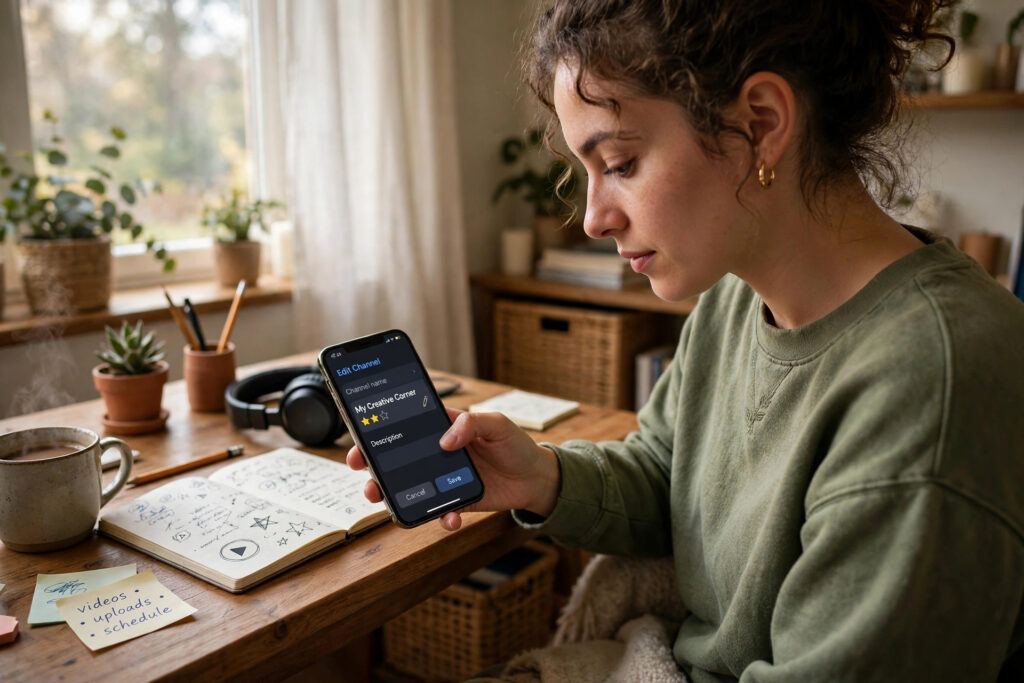
- Copy your styled name from a generator in your phone browser.
- Open the YouTube app, tap your profile picture, then tap View channel.
- Tap the pencil icon next to your channel name, paste the styled name, and save.
Best Symbols for YouTube Channel Names
The best symbols are simple, widely supported and readable at the tiny size a channel name appears in comments and search results. Stars (★ ☆ ✦) are the most popular choice for gaming and entertainment channels. Hearts (♡ ♥) suit lifestyle, music and beauty channels. Small dividers (• | ─) separate words cleanly, for example Nova • Gaming. Bracket frames (꒰ ꒱, 「 」) make a name look like a logo. Nature symbols (✿ ❀ ☾) fit aesthetic, art and lo-fi channels. Use at most two or three symbols.
Copy-Paste Example YouTube Channel Names with Symbols
Copy any of these into your channel name field:
- ★ Nova Gaming ★
- ◆ Nova ◆
- Nova ♡ Daily
- ✦ Nova Plays ✦
- Nova • Official
- ꒰ Nova TV ꒱
- ☾ Nova ☾
- Nova ✿ Vlogs
- 「 Nova 」
- Nova ➳ Shorts
- ✧ Nova Music ✧
- Nova ♥ Live
For more styles, try the stylish nickname maker or the name decorator.
Mistakes to Avoid with Symbols in Your Channel Name
The biggest mistake is over-styling: a channel name written entirely in fancy Unicode letters is hard to find in YouTube search, because search matches normal letters. Keep your main keyword readable. Do not waste your two name changes in 14 days on small experiments — draft and preview first. Do not use a fake verification tick or symbols that make your channel look like an official brand account — that can get flagged for impersonation. Finally, test before you commit: some symbols show as empty boxes on older phones and smart TVs.
Tips for a Channel Name That Ranks and Gets Clicks
Put your niche keyword in plain text — “Nova Gaming” will rank far better than a name that is only symbols. Keep it short enough to read at a glance under a thumbnail — ideally under 30 characters. Match your handle to your channel name as closely as possible so viewers can find you both ways, and check that pairing with the username availability checker. See our guide on how to make a stylish name for a YouTube channel with symbols for more gaming examples.
Frequently Asked Questions
Can I add symbols to my YouTube handle?
No. YouTube handles only allow letters, numbers, periods, hyphens and underscores, and they must be 3–30 characters long. Symbols and fancy fonts work in your channel name only, which allows up to 50 characters.
How often can I change my YouTube channel name?
You can change your YouTube channel name only twice within a 14-day period, so plan your styled name in advance.
Why do some symbols show as boxes on my YouTube channel?
A box means the viewing device does not support that Unicode character. Older phones, smart TVs and some browsers lack newer or rare symbols. Replace it with a widely supported one like ★, ♡ or ✦.
Do symbols in a YouTube channel name hurt search rankings?
Symbols themselves do not hurt rankings, but a name written fully in fancy Unicode letters can, because YouTube search matches normal letters. Keep your main keyword in plain text and use symbols only as decoration.